
Deployments overview
A deployment is a running workload. Each one has a name, an image, a few knobs (resources, port, environment), and a single screen in the console where everything about it lives.
What you see in the list#
The Deployments page lists every workload in the current project — across all locations — with its type, memory request, replica range, location, and the timestamp of the last successful rollout.
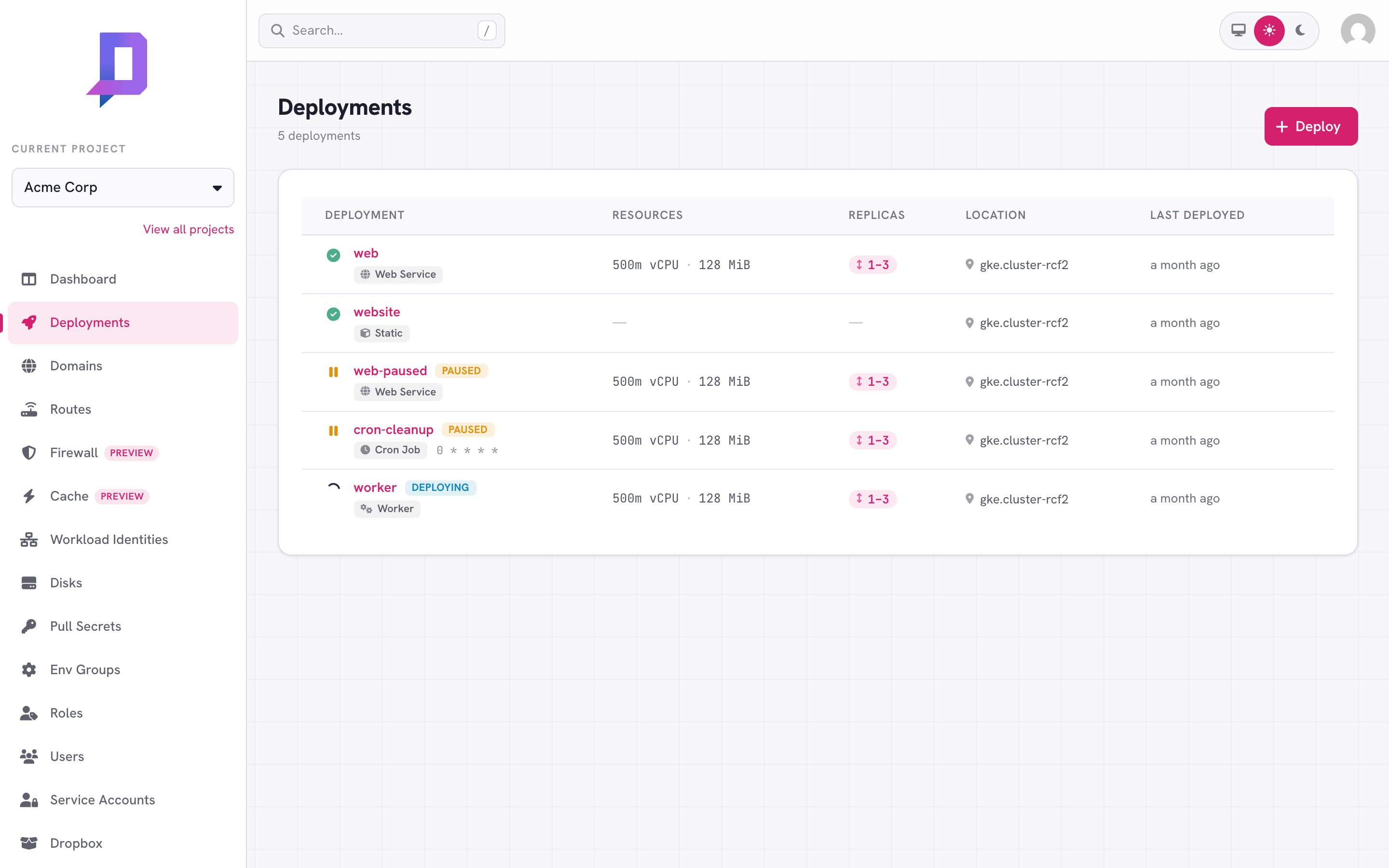
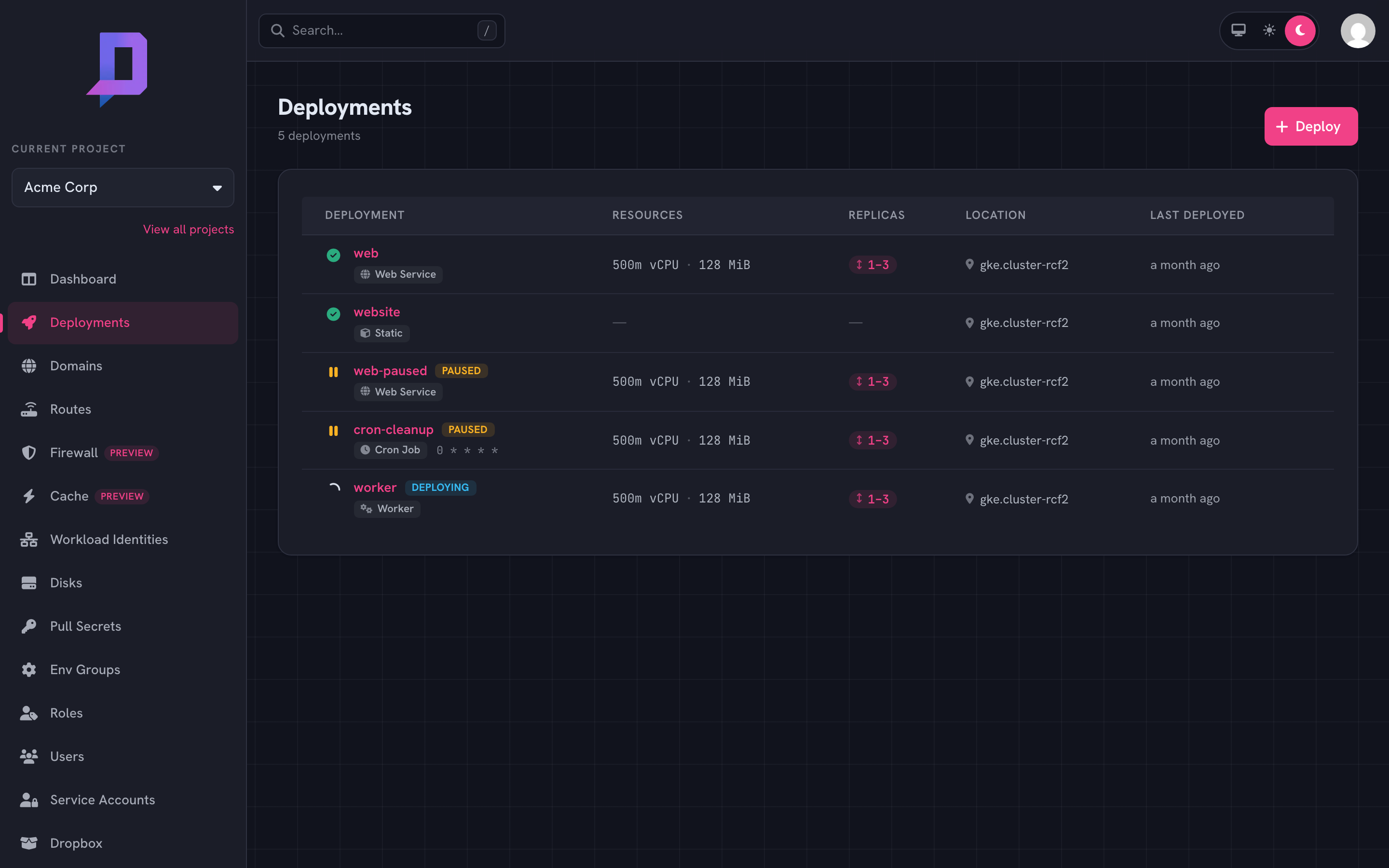
The leading icon shows status at a glance:
- Green check — the latest revision rolled out and pods are healthy.
- Yellow pause — the deployment is paused; existing pods stop and traffic returns 503.
- Spinning arrow — a rollout is in progress.
- Red cross — the rollout failed; the previous revision keeps serving.
The deployment detail page#
Clicking a deployment opens its dashboard. The same screen serves five tabs:
- Metric — live CPU, memory, request rate, and egress charts.
- Details — the full configuration the deployment was rolled out with.
- Revision — the rollout history, with a one-click rollback for each.
- Logs — a live stream of container stdout/stderr.
- Events — the Kubernetes events behind the scenes (useful when something refuses to start).
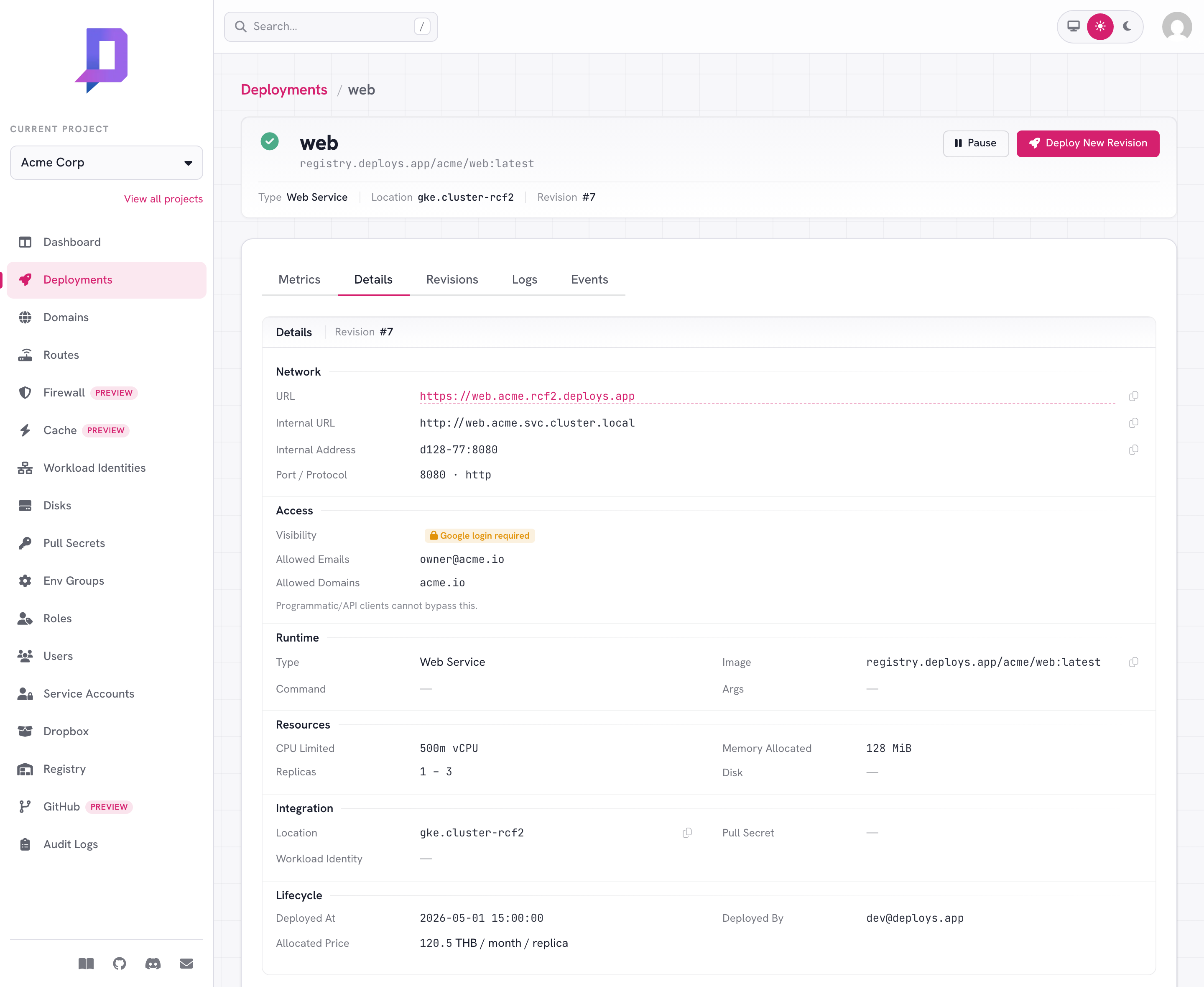
Two actions hang off the top right:
- Deploy New Revision — opens the deploy form pre-filled with the current configuration. Submit it and the new revision rolls out alongside the old one with health-checked traffic shifting.
- Restart — re-rolls the current revision so the pods are recreated, without
changing any configuration. Useful to clear bad in-memory state or pick up an
external change. Available for services and workers (types that keep standing
pods) — not for cron jobs or static sites, which have none. Requires the
deployment.deploypermission. - Pause — stops the workload without deleting it. Resume restores it from the same revision. Useful for cost control on staging or for emergency stops.
The rollout lifecycle#
A successful deployment passes through three states the console surfaces:
- PendingThe new revision is being scheduled. Pods are pulling the image and starting up. The previous revision keeps serving traffic.
- HealthyReadiness checks pass on the new pods. Traffic begins shifting onto the new revision. The deployment status icon turns green.
- Steady-stateThe new revision is the only one serving. Autoscaling continues in the configured replica range. Metrics flow into the dashboard and usage to billing.
If readiness never passes, the rollout fails and the previous revision keeps serving — you don’t get a broken deployment because of a bad image.
Automatic error cleanup#
A deployment that should keep pods running but has no ready pod for 15 minutes is automatically marked error and its workload is torn down. This catches a deployment that applied cleanly but then can’t stay up — a crash-looping image, an image that never pulls, or a readiness probe that never passes — so a dead deployment doesn’t sit consuming a slot indefinitely.
It only ever acts on a deployment that is supposed to have a running pod, so it leaves these alone:
- Scheduled jobs (CronJob) — they have no standing pods between runs.
- Paused deployments, in-flight rollouts, and freshly-deployed revisions (which get a grace period to pull the image and start up).
To recover, fix the image or configuration and deploy again — the deployment is recreated from its spec. While it’s torn down its URL stops serving, so a redeploy is what brings it back.
How to drive it#
Anything you can do from this page, you can do from the CLI or API. The console, CLI, and API all hit the same backend.
# list deployments in a project (a non-sensitive index — no env or secrets)
deploys deployment list --project acme

# get the full config of one deployment (env, mounted files, log URLs, …)
deploys deployment get --project acme --location gke.cluster-rcf2 --name web

# pause a deployment
deploys deployment pause --project acme --location gke.cluster-rcf2 --name old-worker
deployment list returns only each deployment’s name, type, status and other
metadata — never its environment variables or other secrets. Use deployment get for the full configuration. See Roles & permissions for
how this lets you grant list access without exposing secrets.
POST https://api.deploys.app/deployment.<verb> with the same fields as JSON. See the API overview.